

Account & Login · 1 min read
How to enable two-factor authentication (Authenticator)
Last updated Jul 16, 2026
For: Customer & VendorDifficulty: Medium⏱ 3 min
Two-factor authentication (2FA) protects your account even if your password is stolen. You confirm each login with a 6-digit code from an authenticator app such as Google Authenticator, Authy, or 1Password.
Step by step
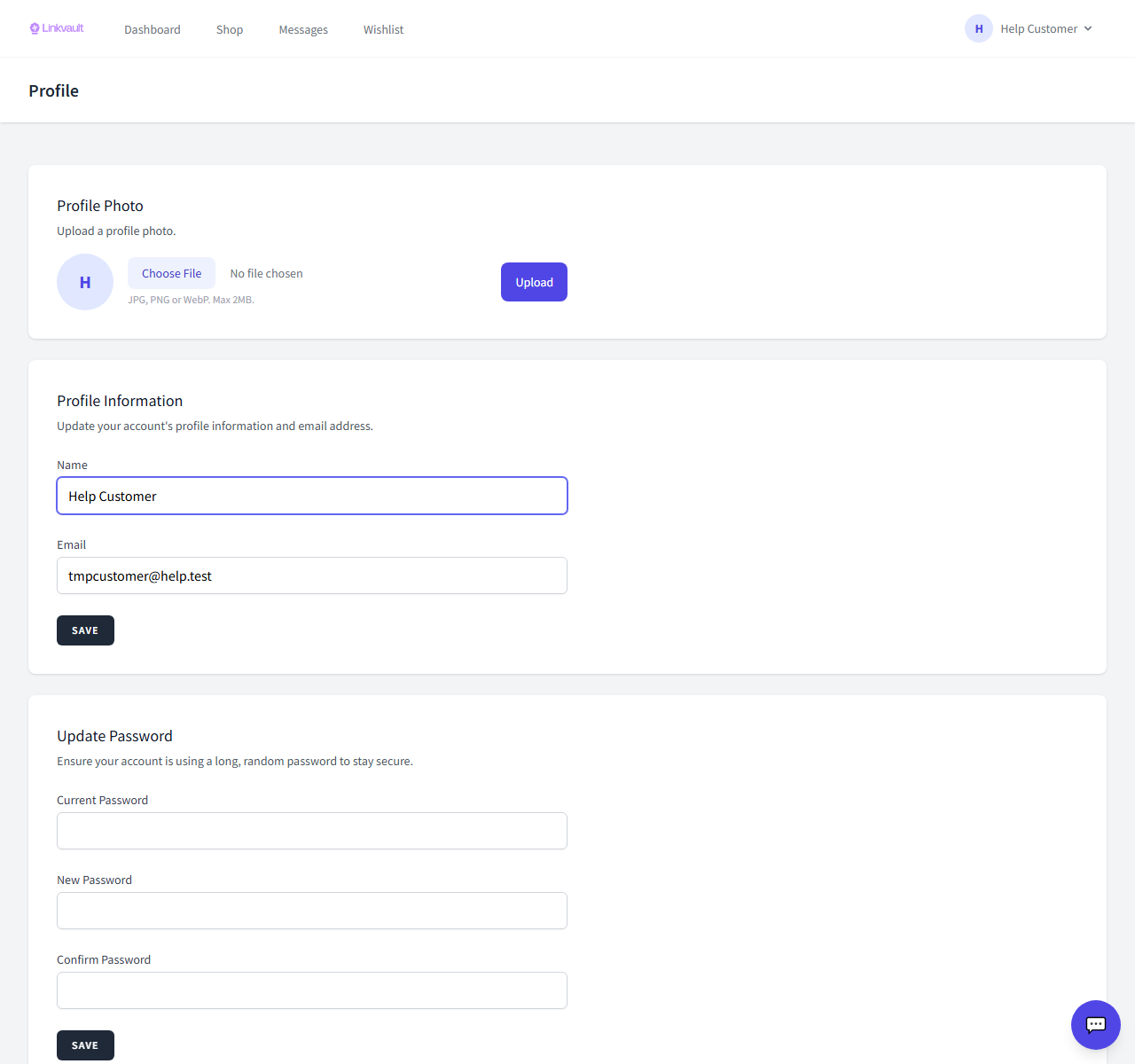
- Open Profile → Security and choose Enable two-factor authentication.
- Scan the QR code with your authenticator app (or type the setup key manually).
- Enter the 6-digit code your app shows to confirm.
- Save your backup codes somewhere safe — they let you back in if you lose your phone.
Tips
- Vendors: 2FA is used to authorise withdrawals, so keep it available.
Frequently asked questions
Which apps work?
Any standard TOTP app: Google Authenticator, Authy, Microsoft Authenticator, 1Password, and others.
I got a new phone.
Use a backup code to sign in, then disable and re-enable 2FA to link the new device.
Was this article helpful?